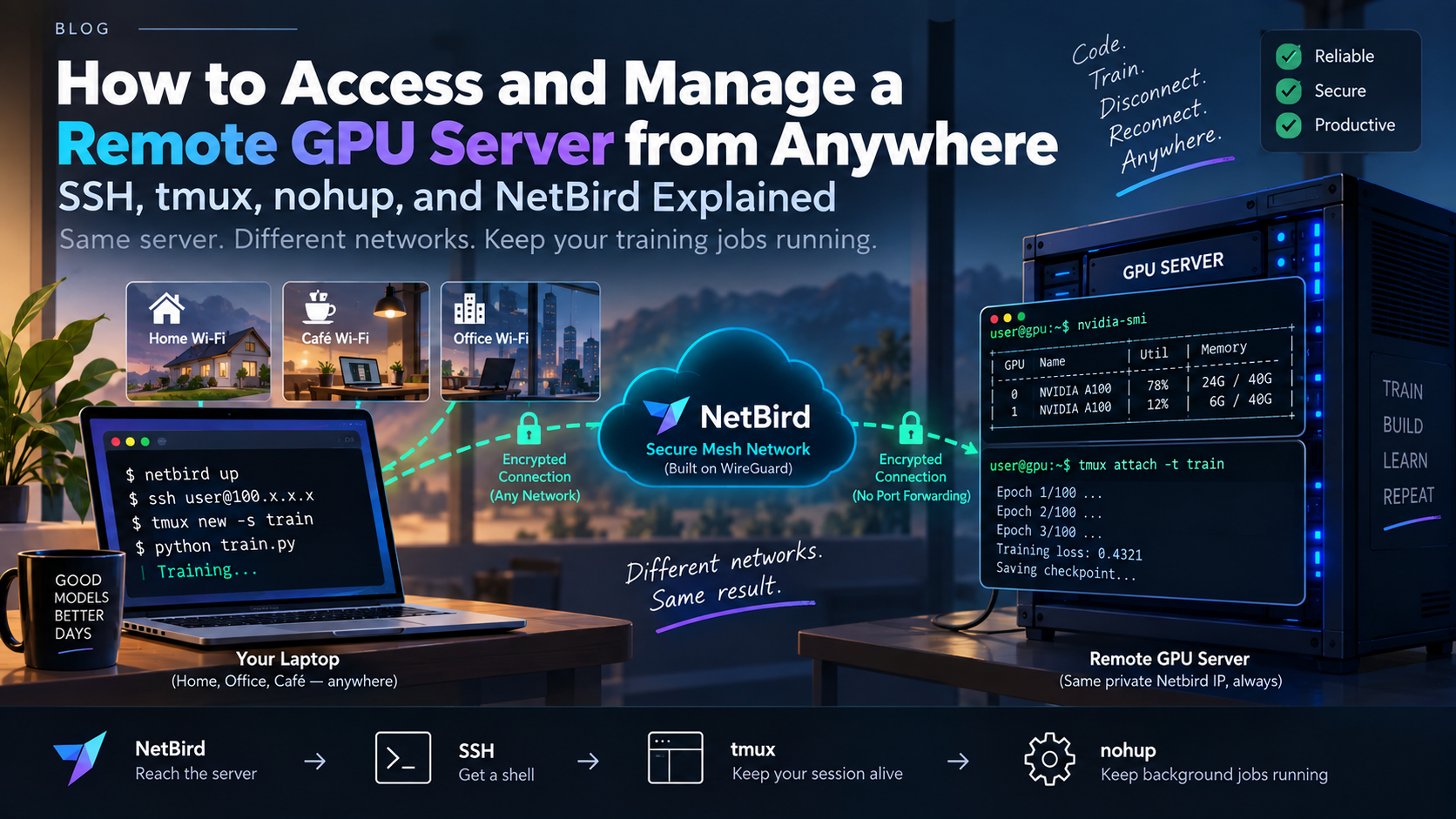
Your GPU Server Doesn't Care Which Wifi You're On: SSH, tmux, and Netbird Explained
6 min read
By Krushna Sonawane
If you've ever kicked off a training run over SSH, closed your laptop to grab coffee, and come back to find the whole thing dead — you already know the two problems this post solves.
First: how do you keep a process alive on a remote GPU server when your own connection is temporary or unreliable?
Second: how do you reach that GPU server in the first place from your home Wi-Fi, a café, a different office, or another network without opening ports manually?
Three tools solve three different problems:
- NetBird → gets you connected to the GPU server.
- SSH → gives you a remote shell.
- tmux / nohup → keeps your work alive after you disconnect.
Part 1: SSH — The Tunnel, Not the Session
SSH (Secure Shell) allows you to open a shell on a remote machine. For example:
ssh username@server-ipAfter this command succeeds, you are interacting with the remote server as if you were sitting in front of it.
But there is an important limitation: SSH itself does not keep your program alive after the session disappears.
Imagine you start a six-hour model training job:
python train.pyYour laptop is connected to the GPU server through SSH. Then your Wi-Fi drops, your laptop goes to sleep, or the SSH connection is terminated.
The SSH session disappears, and processes that depend on that session can also terminate.
This is why running long training jobs directly inside an SSH shell is risky.
Think of SSH as the connection layer.
It gets you a shell on the remote machine, but it is not a job-management system.
Part 2: tmux and nohup — Surviving Disconnection
This is where tmux and nohup become useful. Both solve the basic problem:
"I want my process to keep running even after I disconnect."
tmux — A Persistent Terminal
tmux is a terminal multiplexer. The important idea is that the terminal session lives on the server, not on your laptop.
You first connect to the GPU server:
ssh username@server-ipThen create a tmux session:
tmux new -s trainNow start your training:
python train.pyAt this point, you can detach from tmux without stopping the training process. Press:
Ctrl-b
d
The training continues running on the server.
Later, you can reconnect:
ssh username@server-ip
tmux attach -t train
You will return to the same tmux session and can continue watching the training logs.
Why tmux Is Useful for ML Training
- Keep long-running training jobs alive.
- Reconnect to the same terminal later.
- Create multiple terminal windows.
- Create multiple panes.
- Monitor GPU usage alongside training.
- Run multiple commands on the same server.
For example, you could have:
┌───────────────────────────────┬──────────────────────┐
│                               │                      │
│        python train.py        │      nvidia-smi      │
│                               │                      │
│        Training logs          │      GPU usage       │
│                               │                      │
├───────────────────────────────┴──────────────────────┤
│                                                      │
│                    Shell                             │
│                                                      │
└──────────────────────────────────────────────────────┘
That is one reason tmux is particularly useful when working with remote GPU servers.
nohup — The Simpler Alternative
nohup stands for "no hang up". It allows a process to continue running even when the terminal session is closed.
A typical command looks like this:
nohup python train.py > training.log 2>&1 &There are several pieces here:
nohup→ prevents the process from receiving the normal hangup behavior.python train.py→ the program being executed.> training.log→ writes standard output to a log file.2>&1→ sends errors to the same log file.&→ runs the process in the background.
You can then monitor the training with:
tail -f training.logCheck whether the process is running:
pgrep -fa train.pyOr:
ps aux | grep train.pyTo stop it:
kill <PID>tmux vs nohup
| Feature | tmux | nohup |
|---|---|---|
| Survives SSH disconnect | Yes | Yes |
| Reconnect to terminal | Yes | No |
| Multiple panes | Yes | No |
| Interactive work | Excellent | Limited |
| Simple background job | Good | Excellent |
Use tmux when you want to come back and interact with your running environment.
Use nohup when you simply want to launch a background process and collect its output in a log file.
Part 3: NetBird — Actually Reaching the GPU Server
There is another problem that SSH does not solve: how do you reach the server if you cannot directly access its IP?
SSH assumes that the server is already reachable.
For example:
ssh username@192.168.1.50This works if your laptop and the GPU server are on the same network and that address is reachable.
But what happens if:
- Your laptop is on home Wi-Fi.
- The GPU server is in another office.
- The server is behind NAT.
- The server does not have a public IP.
- You are working from a café or another network.
Now the problem is not SSH itself. The problem is network reachability.
This is where NetBird fits.
What NetBird Does
NetBird is a networking system built around WireGuard. It allows devices to join a private network and communicate securely with each other.
Instead of manually configuring port forwarding every time, you install the NetBird agent on the devices you want to connect.
For example:
                 NetBird Network

        ┌─────────────────────────┐
        │                         │
        │      Coordination       │
        │                         │
        └────────────┬────────────┘
                     │
          ┌──────────┴──────────┐
          │                     │
          ▼                     ▼

    ┌─────────────┐       ┌─────────────┐
    │   Laptop    │       │ GPU Server  │
    │             │       │             │
    │ NetBird     │◄─────►│ NetBird     │
    │ Agent       │       │ Agent       │
    └─────────────┘       └─────────────┘
Once both machines are connected to the same NetBird network, they can communicate using their private NetBird addresses.
For example:
ssh youruser@100.x.x.xThe important part is that you do not have to care whether your laptop is currently using:
- Home Wi-Fi
- Office Wi-Fi
- Café Wi-Fi
- Another Internet connection
From your perspective, you can use the same NetBird address to reach the server.
How NetBird, SSH, and tmux Fit Together
This is the key concept. These tools are not alternatives to each other. They operate at different layers.
┌─────────────────────────────────────────────┐
│                 Your Laptop                │
│                                             │
│              SSH Client                    │
│                  │                          │
│                  ▼                          │
│             NetBird Network                │
└──────────────────┬──────────────────────────┘
                   │
                   │ Encrypted connection
                   │
                   ▼
┌─────────────────────────────────────────────┐
│               GPU Server                   │
│                                             │
│              NetBird Agent                 │
│                     │                       │
│                     ▼                       │
│                   SSH                      │
│                     │                       │
│                     ▼                       │
│                  tmux                      │
│                     │                       │
│                     ▼                       │
│              python train.py               │
│                     │                       │
│                     ▼                       │
│                    GPU                     │
└─────────────────────────────────────────────┘
Each layer has a different responsibility:
| Tool | Problem It Solves |
|---|---|
| NetBird | How do I reach the GPU server? |
| SSH | How do I get a shell on the GPU server? |
| tmux | How do I keep my terminal session alive? |
| nohup | How do I keep a background process running? |
The Complete Workflow
Step 1 — Connect to NetBird
netbird upThis connects the machine to the NetBird network once NetBird has been installed and authenticated.
Step 2 — SSH Into the GPU Server
ssh youruser@100.x.x.xHere 100.x.x.x represents the GPU server's NetBird address.
Step 3 — Create a tmux Session
The first time:
tmux new -s trainWhen reconnecting later:
tmux attach -t trainStep 4 — Start the Training Job
python train.pyStep 5 — Detach From tmux
Ctrl-b
d
Your training continues running on the GPU server.
Step 6 — Come Back Later
From your laptop:
ssh youruser@100.x.x.xThen:
tmux attach -t trainYou are back inside the same persistent session.
What Happens When You Change Wi-Fi?
Suppose you start training from home.
Laptop
   │
   │ Home Wi-Fi
   ▼
NetBird
   │
   ▼
GPU Server
   │
   ▼
tmux
   │
   ▼
Training Job
Now you close your laptop and go to a café.
Your physical network changes:
Company Wi-Fi
     ↓
Home Wi-Fi
But the GPU server does not need to change. Your training process is still running inside tmux on the server.
You simply reconnect to the NetBird network and SSH into the same NetBird address:
ssh youruser@100.x.x.xThen:
tmux attach -t trainYou are back where you left off.
One Important Mental Model
Do not think of these tools as three different ways of doing SSH. Think of them as three layers:
NETWORK
   │
   │  "Can I reach the server?"
   ▼
NETBIRD
   │
   │  "Can I open a remote shell?"
   ▼
SSH
   │
   │  "Can my work survive disconnecting?"
   ▼
TMUX / NOHUP
   │
   │
   ▼
TRAINING JOB
   │
   ▼
GPU
That distinction is the important part.
NetBird gets you there.
SSH gives you access.
tmux keeps your interactive session alive.
nohup keeps a background process running.
Final Takeaway
If you are working with remote GPU servers, the practical workflow is:
NetBird
   ↓
SSH
   ↓
tmux
   ↓
Training
   ↓
GPU
You do not need to fight with your Wi-Fi connection every time you move between networks. The network layer handles connectivity, SSH handles remote access, and tmux handles persistence.
Once you understand these three layers, remote GPU development becomes much easier to reason about.